This section describes how to discover container resources using RDA.
Prerequisites
- You have configured a license by referring to License Configuration.
- You have added credentials by referring to Credential Management.
- You have installed the container collector by referring to Plugin Management.
Procedure
- Double-click the RDA icon on the desktop or RDA.exe in the installation directory to start the RDA client. Enter the username and password to log in to the RDA console.
- In the navigation pane on the left, choose Discovery > Containers.
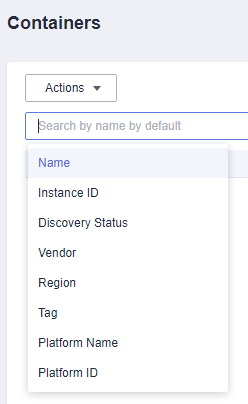
- Choose Actions > Add in the upper left corner of the page.Figure 1 Adding a container
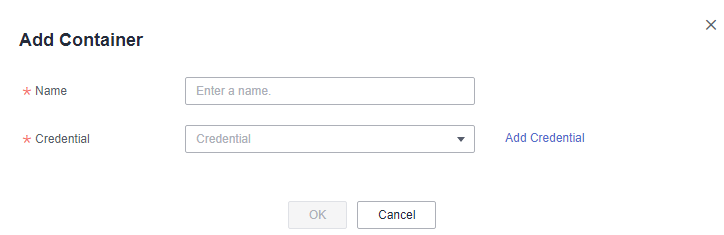
- Enter a user-defined name and select a container credential.If no credentials are added in advance, click Add Credential next to the Credential box. In the expanded area, enter the credential name, select the authentication, add a file and upload it, and click Save Credential. Then click OK. To learn how to add a credential, see Credential Management.

View the added container in the list. The system automatically checks the credential binding status and discovers the container.
Follow-Up Operations
After a container is added to RDA, you can perform the following operations:
- Viewing the discovery results
In the container list, locate a container and view the status icon in the Status column.
- If the icon is
 , the resource discovery is successful. You can click the server name to view the collected server details.
 - If the icon is
 , the resource discovery fails.
- If the icon is
- Viewing the cause of a discovery failure
Hover over
 in the container status column and view the failure cause.
 - Associating a credential to containers in a batch
If multiple containers use the same credential, you can associate the credential to these containers at the same time.
- In the container list, select the containers to be associated with the same credential and click Associate Credential.
- Select an existing credential or click Add Credential to create one. Enter the credential name and upload a configuration file. Then click OK.
- Rediscovering a container
After handling the discovery failure, select the container and choose Actions > Rediscover in the upper left corner to rediscover the container.
- Adding a tag
If you add multiple containers to RDA, you can tag them for more efficient management and search.
- Select the container to which you want to add a tag and click Actions > Manage Tags.
- Select one or more tags. A tag value can be empty.
If no tags meet your requirements, click
 and create a tag by referring to Tag Management.
- Quick search
On the Containers page, you can use the search box and select search criteria to quickly search for container resources.