Scenarios
SMS allows you to create server templates for quick configuration. You can use these templates to quickly configure target server settings, such as VPC, Subnet, and Security Group.
Procedure
- Double-click the RDA icon on the desktop or RDA.exe in the installation directory to start the RDA client. Enter the username and password to log in to the RDA console.
- In the navigation pane on the left, choose SMS > Templates.
- In the upper right corner of the Server Templates area, click Create Server Template.Figure 1 Create Server Template
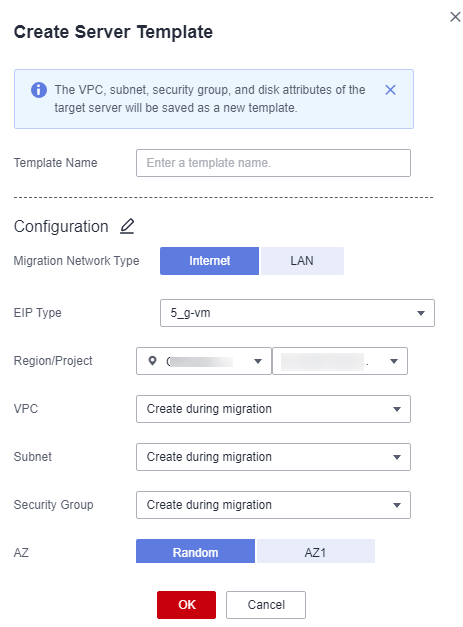
- Enter a template name, click
 next to Configuration, and set parameters listed in Table 1.
Table 1 Parameters Parameter
Description
Migration Network Type
Configure this parameter based on site requirements.
EIP Type
The default value is 5_g-vm.
Region
- Select a region where you want to provision the target server.
- By default, the region is the one set in the default migration template, but you can change it as needed.
Project
- Select a project in the region from the drop-down list.
- You can select a project only after a region is selected.
VPC
If you select Create during migration, SMS will recommend a VPC when you use this template to configure a target server.
- If the source IP address is 192.168.X.X, SMS will recommend a VPC and a subnet that both belong to network segment 192.168.0.0/16.
- If the source IP address is 172.16.X.X, SMS will recommend a VPC and a subnet that both belong to network segment 172.16.0.0/12.
- If the source IP address is 10.X.X, SMS will recommend a VPC and a subnet that both belong to network segment 10.0.0.0/8.
Subnet
- If you select Create during migration, SMS will recommend a subnet when you use this template to configure a target server.
- The subnet is in the same network segment as the VPC.
Security Group
- If you select Create during migration, SMS will recommend a security group and allow traffic on required ports when you use this template to configure a target server.
- Windows: ports 8899, 8900, and 22
- Linux: port 22 for a file-level migration and ports 8900 and 22 for a block-level migrationCAUTION:
- For security purposes, you are advised to open these ports only to the source server.
- The firewall of the target server must allow traffic to these ports.
AZ
The parameter is set to Random by default. You can also select another AZ.
Disk Type
The value can be Common I/O, High I/O, or Ultra-high I/O.
- Click OK.
Follow-Up Operations
You can perform the following operations on a created server template.
Operation |
Description |
|---|---|
Modifying a cloud environment |
|
Deleting a server template |
|