Scenarios
SMS allows you to create migration templates for quick configuration. You can use these templates to quickly configure the migration settings, such as parameters Network, Migration Rate Limit, Continuous Synchronization, Region, and Project.
Procedure
- Double-click the RDA icon on the desktop or RDA.exe in the installation directory to start the RDA client. Enter the username and password to log in to the RDA console.
- In the navigation pane on the left, choose SMS > Templates.
- In the upper right corner of the Migration Templates area, click Create Migration Template. In the displayed Create Migration Template dialog box, enter a name and description, and click OK.Figure 1 Specifying a template name
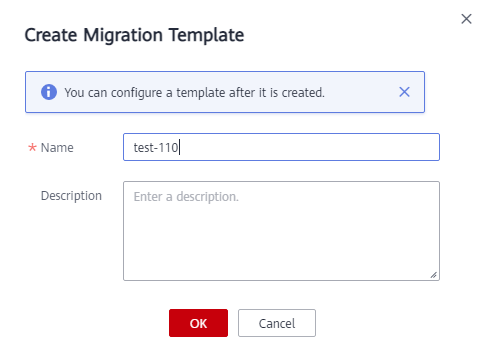

A template name cannot be changed after the template is created.
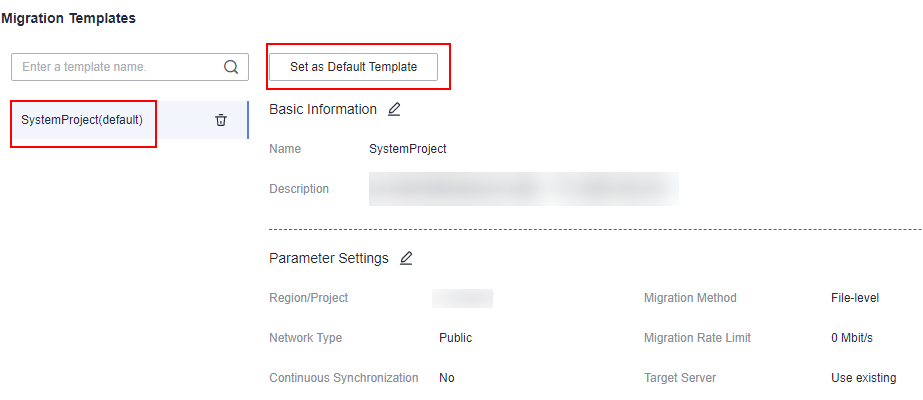
- In the Migration Templates area, on the left, click the name of the created template.In the Migration Templates area, on the right, click
 next to Parameter Settings to configure template parameters.Figure 2 Parameter Settings
Table 1 describes the parameters.
Table 1 Parameters Parameter
Option
Description
Region
N/A
Consider your service requirements.
Item
N/A
You can select a project only after a region is selected.
Migration Method
Block-level
- Migration and synchronization are performed by block. This method is efficient but the compatibility is poor.
- Migration and synchronization are performed by block. For Windows servers, SMS only supports highly efficient block-level migration.
File-level
Migration and synchronization are performed file by file. This method is inefficient, but the compatibility is excellent.
Network Type
Public
An EIP must be bound to the target server.
Network Type is set to Public by default.
Private
You need to create a Direct Connect or VPN connection between the source and the VPC subnet you are migrating to.
If the source and target servers are in the same VPC, select Private.
Migration Rate Limit
N/A
You can configure the rate limiting based on the source bandwidth and service requirements. If you do not want to limit the migration rate, set this parameter to 0.
Continuous Synchronization
No
After a full replication, SMS will not perform a continuous synchronization and launch the target server automatically. To synchronize incremental data, click Sync in the Operation column.
Yes
After a full replication, SMS will periodically synchronize incremental data. To complete the migration, you need to manually launch the target server.
Server
Use existing
You need to select an existing server based on the recommended target server specifications when you configure the target server.
Create during migration
You need to set parameters such as the VPC, subnet, and security group as required when you configure a target server.
- Click OK.
- (Optional) Click the name of the created template, and click Set as Default Template to set it as the default template.Figure 3 Set as Default Template