Scenarios
You need to install the Agent on the source server and enter the AK and SK of your Huawei Cloud account you are migrating to. After the Agent starts, it automatically reports source server information to SMS. All collected data is used for migration only.
Prerequisites
- You have made preparations by referring to Preparing for Migration.
- You have obtained the root permissions for the source server.
Procedure
- Double-click the RDA icon on the desktop or RDA.exe in the installation directory to start the RDA client. Enter the username and password to log in to the RDA console.
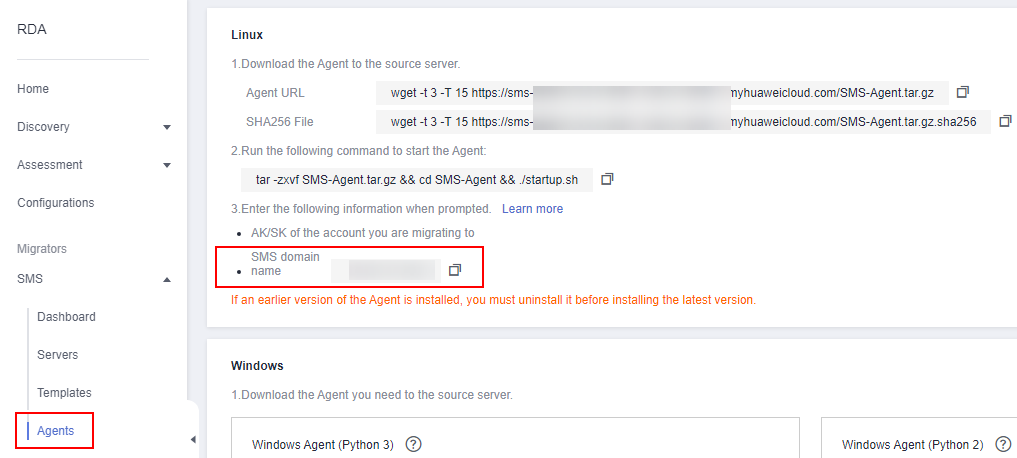
- In the navigation pane on the left, choose SMS > Agents.
- Run the download command next to Linux URL in the Linux area.
- Run the download command next to SHA256 File to download the sha256 verification code and verify the integrity of the Agent installation package. For details, see How Do I Verify the Integrity of the Agent Installation File?.
- Transfer the downloaded Agent installation package to the source server. Log in to the source server as user root and run the following command to decompress the Agent installation package:
tar -zxvf SMS-Agent.tar.gz
- Switch to the SMS-Agent directory on the source server.
cd SMS-Agent
- Start the Agent.
./startup.sh
- Carefully review what information will be collected by the Agent, enter y, and press Enter.Figure 1 Entering y

- Enter the AK/SK pair of the destination account and the SMS domain name in the region you are migrating to. You can obtain the SMS domain name on the Agents page of the RDA console, as shown in Figure 3.
When the following information is displayed, the Agent has been started up and will automatically start reporting source server information to SMS.
Figure 2 Entering the AK/SK pair