Scenarios
Before using OMS, you need to download and install the OMS plugin.
Procedure
- Double-click the RDA icon on the desktop or RDA.exe in the installation directory to start the RDA client. Enter the username and password to log in to the RDA console.
- In the navigation pane on the left, choose Configurations.
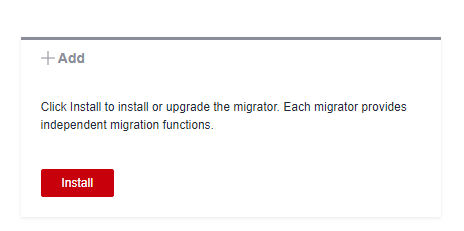
- Click Install in the Add pane under Migrators.
- Select an installation method.
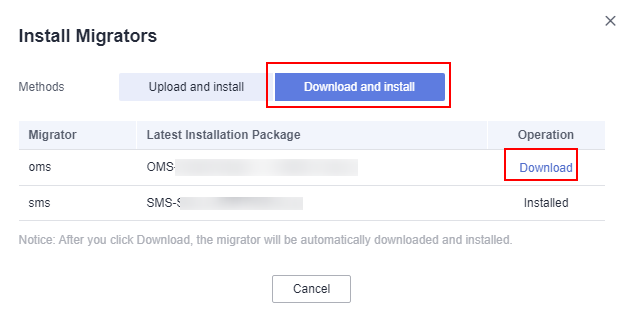
- Download and install: Locate the latest OMS plugin installation package, and click Download in the Operation column to download the installation package to the RDA installation directory, for example, C:\RDA.

The OMS plugin installation package is downloaded from OBS buckets on Huawei Cloud over the Internet. The domain names of the OBS buckets are:
- rda-collector.obs.cn-north-4.myhuawecloud.com
- rda-collector.obs.cn-north-1.myhuawecloud.com
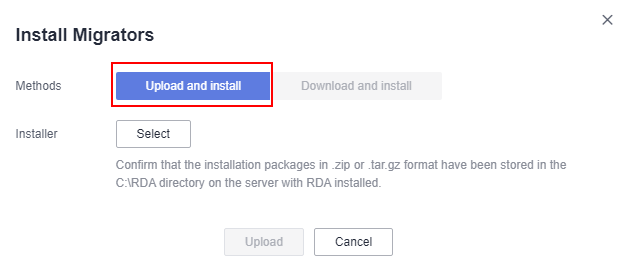
- Upload and install: Click Select to upload the OMS plugin installation package. Ensure that the OMS plugin installation package has been stored in the C:\RDA directory of the server where RDA is installed.
- Download and install: Locate the latest OMS plugin installation package, and click Download in the Operation column to download the installation package to the RDA installation directory, for example, C:\RDA.
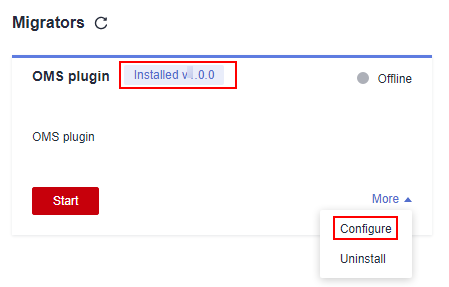
- Wait until the OMS plugin is installed. Click More > Configure in the lower right corner of the OMS plugin pane.
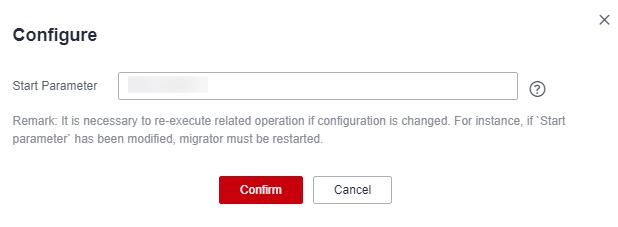
- In the Start Parameter text box, enter the private IP address of the server where RDA is installed, and click OK. You can run ipconfig in the CLI on the RDA server to obtain the IPv4 address. Do not enter 127.0.0.1.
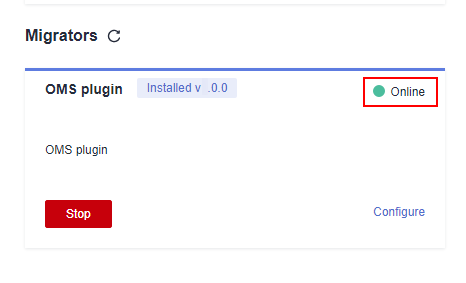
- Wait until the configuration is complete. Then click Start in the OMS plugin box. When the status changes from Ready to Online, the OMS plugin is started successfully.